one-handed iphone guide

how to use an iphone one-handed.

use iphone’s one-handed keyboard layout, reachability, and a keyboard position that matches your free hand to make one-handed use more comfortable.

download una mano for free
  • made for iphone
  • works without full access
  • 14 days free
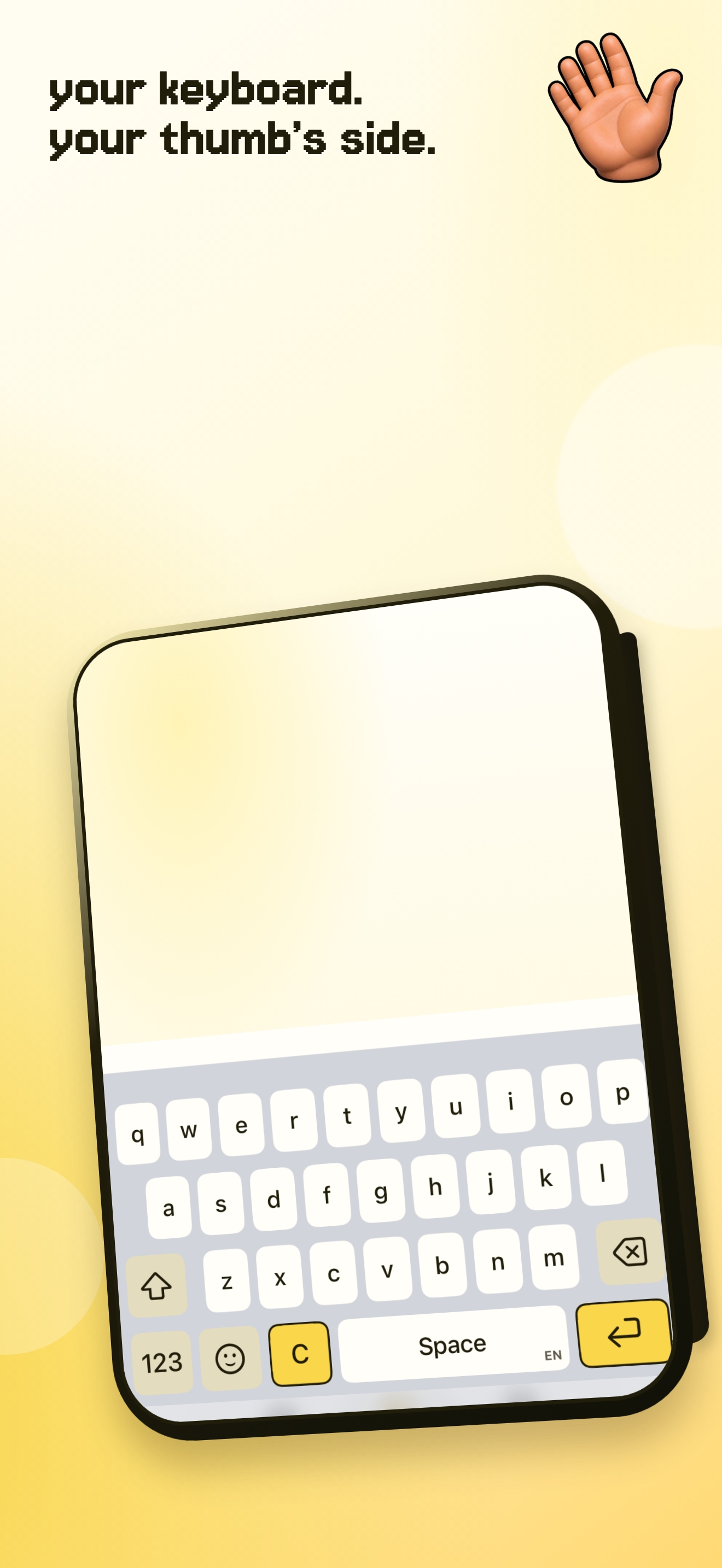
an iphone showing una mano in a familiar centred keyboard layout.

move apple’s keyboard.

while typing, touch and hold the emoji or globe key. choose the left or right layout to move apple’s keyboard closer to your thumb. tap the open edge of the keyboard to return it to centre.

turn on reachability.

go to settings, accessibility, touch, then turn on reachability. on an iphone with face id, swipe down on the bottom edge to lower the top half of the screen. it is useful for controls that sit far above the keyboard.

choose a keyboard position.

for quick position changes while typing, use una mano. select left, centre, or right from the keyboard position button, then keep the familiar layout under your thumb.

the best position is the one that matches the hand you have free in that moment.

questions people ask.

how do i turn on one-handed keyboard on iphone?

touch and hold the emoji or globe key while typing, then choose the left or right keyboard layout.

what is reachability on iphone?

reachability lowers the top half of the screen so it is easier to reach with one hand.

can i move the keyboard while i type?

yes. una mano lets you change between left, centre, and right positions from the keyboard.

put your keyboard within reach.

download on the app store